
Total Security Suite - Firewall, Captcha, 2FA & Scanner. Total Security bundles into one module a web application firewall, a captcha for the store forms, two-factor authentication (2FA) for the back office and customers, a local malware/webshell scanner, and a live security score that tells you what to improve. Everything runs on your own server: nothing leaves your shop. No coding, no theme edits.
Total Security bundles into one module a web application firewall, a captcha for the store forms, two-factor authentication (2FA) for the back office and customers, a local malware/webshell scanner, and a live security score that tells you what to improve. Everything runs on your own server: nothing leaves your shop. No coding, no theme edits.
1. Installation
- In the back office go to Modules → Module Manager → Upload a module and select the module ZIP.
- Once installed, click Configure. A short panel opens with a Go to configuration button that takes you to the full page.

.local, .test, localhost) are always allowed. When a new version is available it is shown right inside the module.If instead of the confirmation you read "Upload failed", PrestaShop may have disabled the module without telling you: your settings and data stay where they are. How to update a module, and what to do if it says "Upload failed".
2. Configuration: the tabs
The module page is organised in tabs across the top: Dashboard, Firewall rules, Blocked log, Login protection, Captcha, Two-factor auth, Malware scanner and Settings.
Dashboard security score
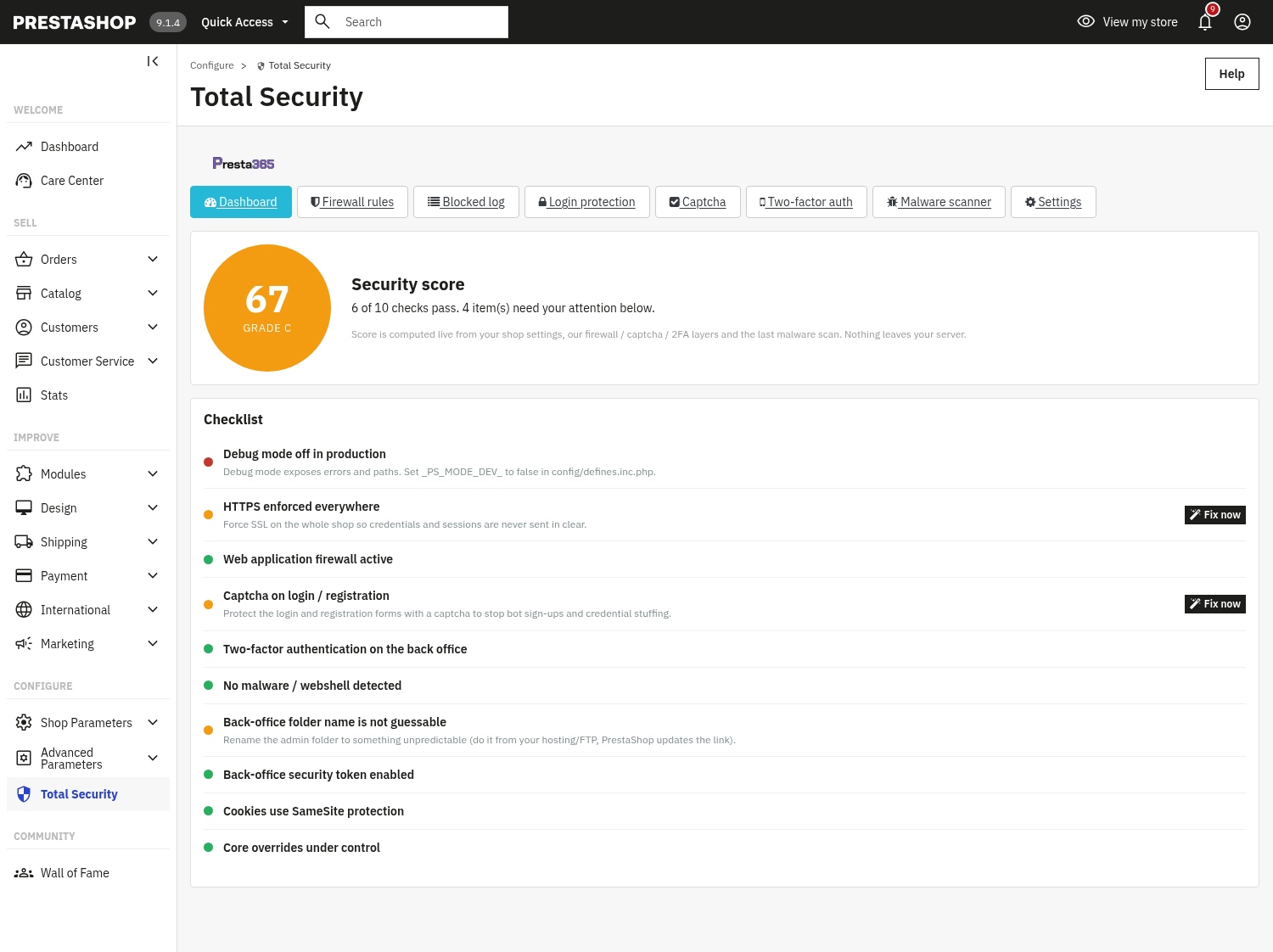
A live Security score with a letter grade (A/B/C/D), computed from your shop settings, the firewall/captcha/2FA layers and the last malware scan (nothing leaves your server). Below it a Checklist of security checks (examples visible: debug mode off in production, HTTPS enforced everywhere, web application firewall active, captcha on login/registration, two-factor authentication on the back office, no malware/webshell detected, back-office folder name not guessable, back-office security token enabled). Items that need attention show a Fix now shortcut that jumps straight to the relevant setting.
Firewall rules
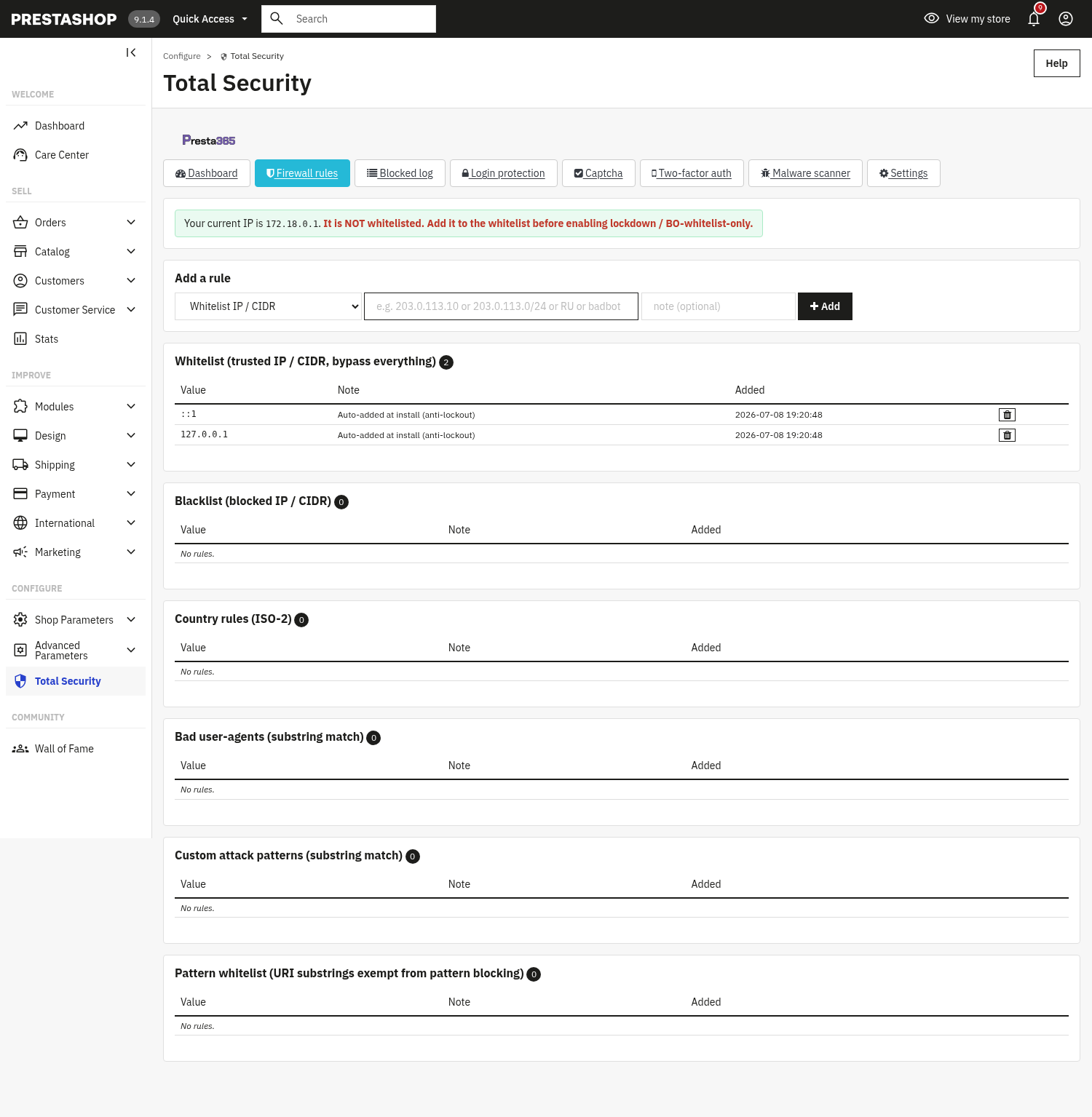
Add and manage the rule lists with one Add a rule form: Whitelist IP/CIDR (trusted, bypasses everything), Blacklist IP/CIDR (blocked), Country rules (ISO-2 codes), Bad user-agents (substring match), Custom attack patterns (substring match), and a Pattern whitelist (/module/designer/save for the address of a page, ending with * for the addresses below it; ?fc=module&module=designer&controller=save or ?controller=search for a page whatever its address; any other text for a whole value. An entry never matches part of a value: a value that only contains it is still checked). A banner shows your current IP and warns you to whitelist it before enabling lockdown mode or back-office-whitelist-only, so you never lock yourself out.
Blocked log
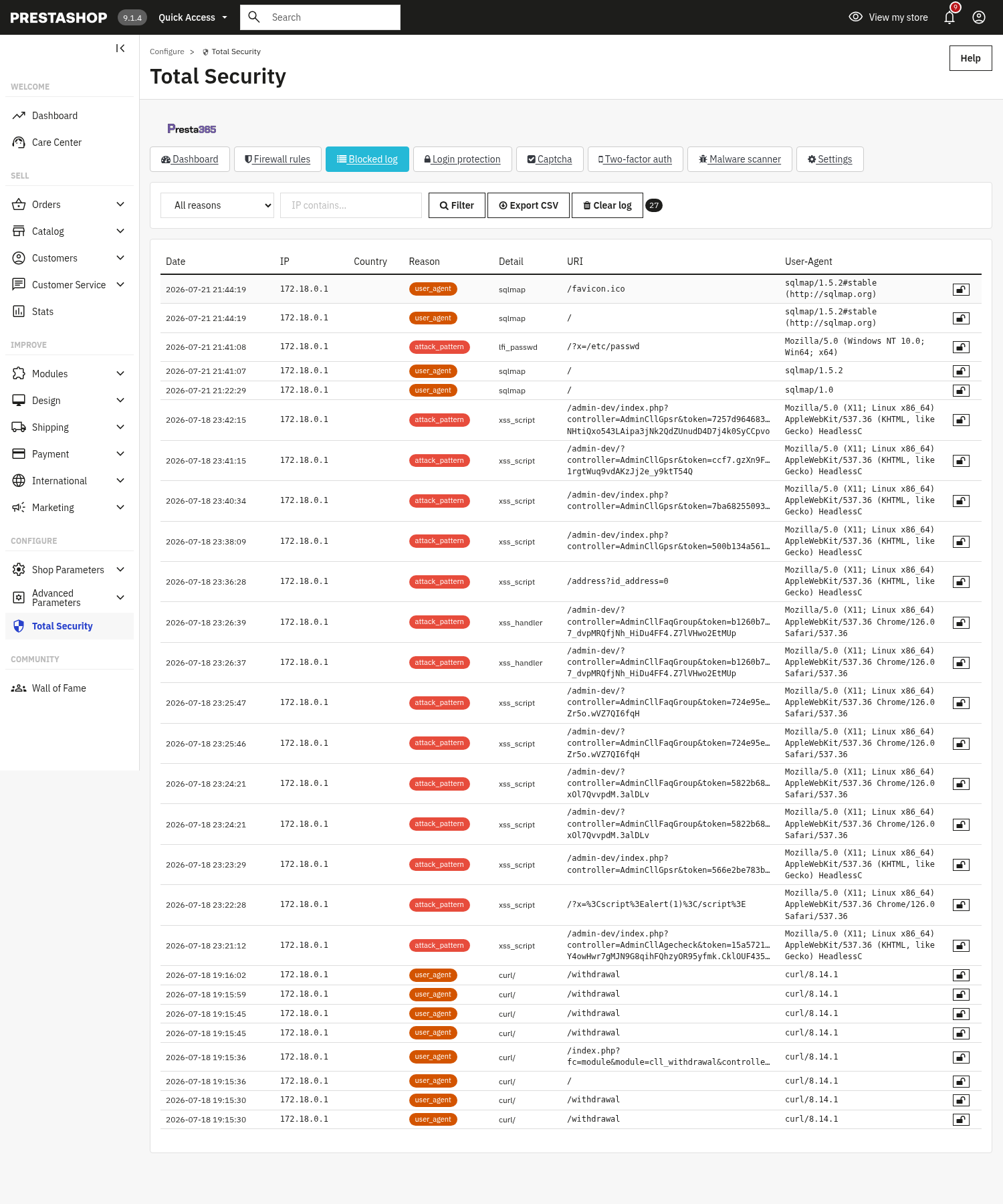
Every blocked request is logged with date, IP, country, reason (e.g. user_agent, attack_pattern, ip, rate, login), detail, the requested URI and the user-agent. Filter by reason or IP, Export CSV, Clear log, or unblock an IP right from here.
Login protection
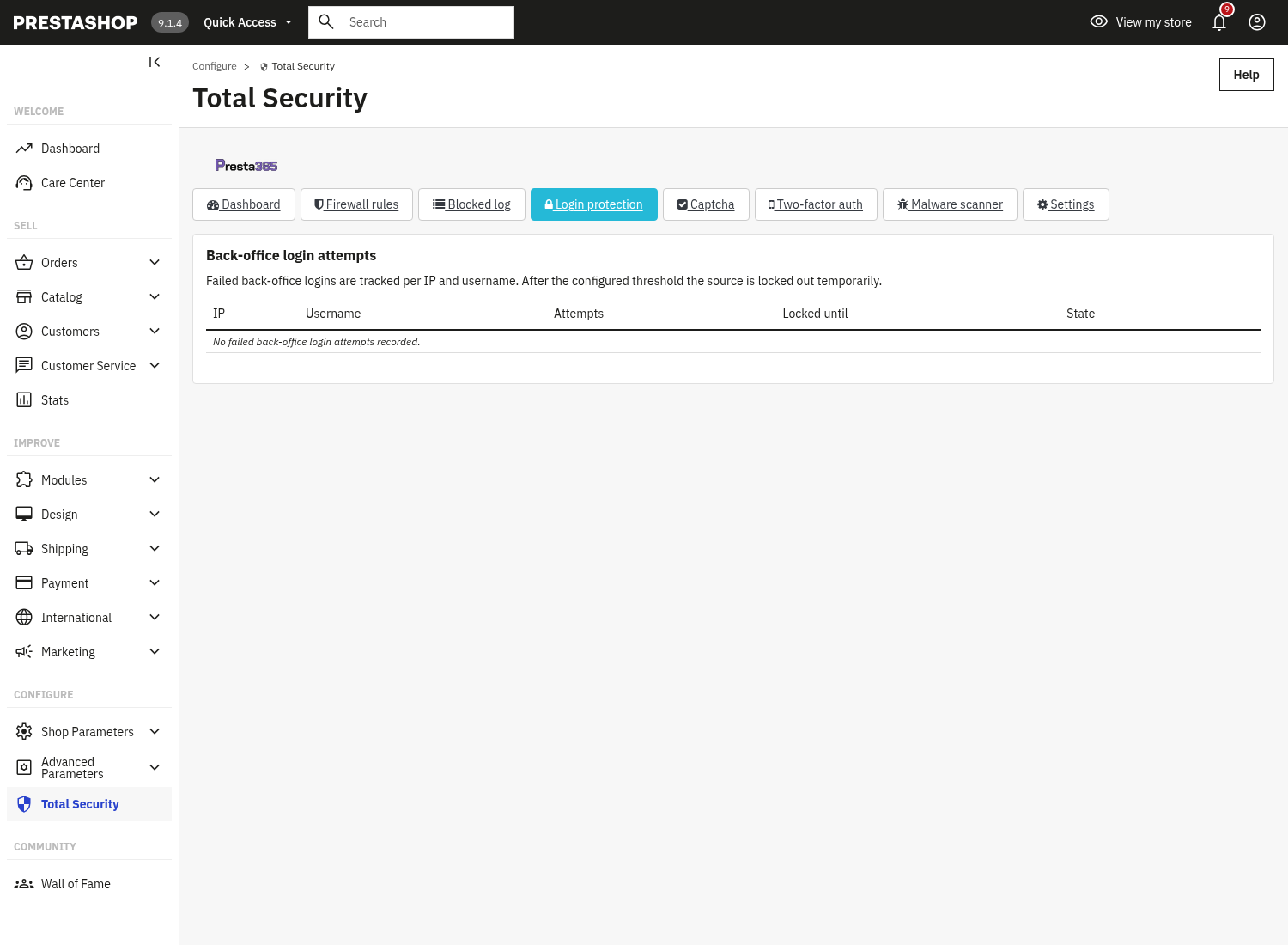
Tracks back-office login attempts and locks an account/IP after too many failed attempts within a time window; you can unlock an entry manually. Failed attempts are counted on PrestaShop 1.7, 8 and 9, and a blocked address is turned away before the password is even checked, PrestaShop 9 included. Configure the thresholds in Settings (Back-office login protection). Customer sign-in during checkout also has a limit of failed attempts per IP address (twice the back-office threshold, over the same time window): past the limit the customer is sent back to the checkout with a message asking them to wait a few minutes.
Captcha
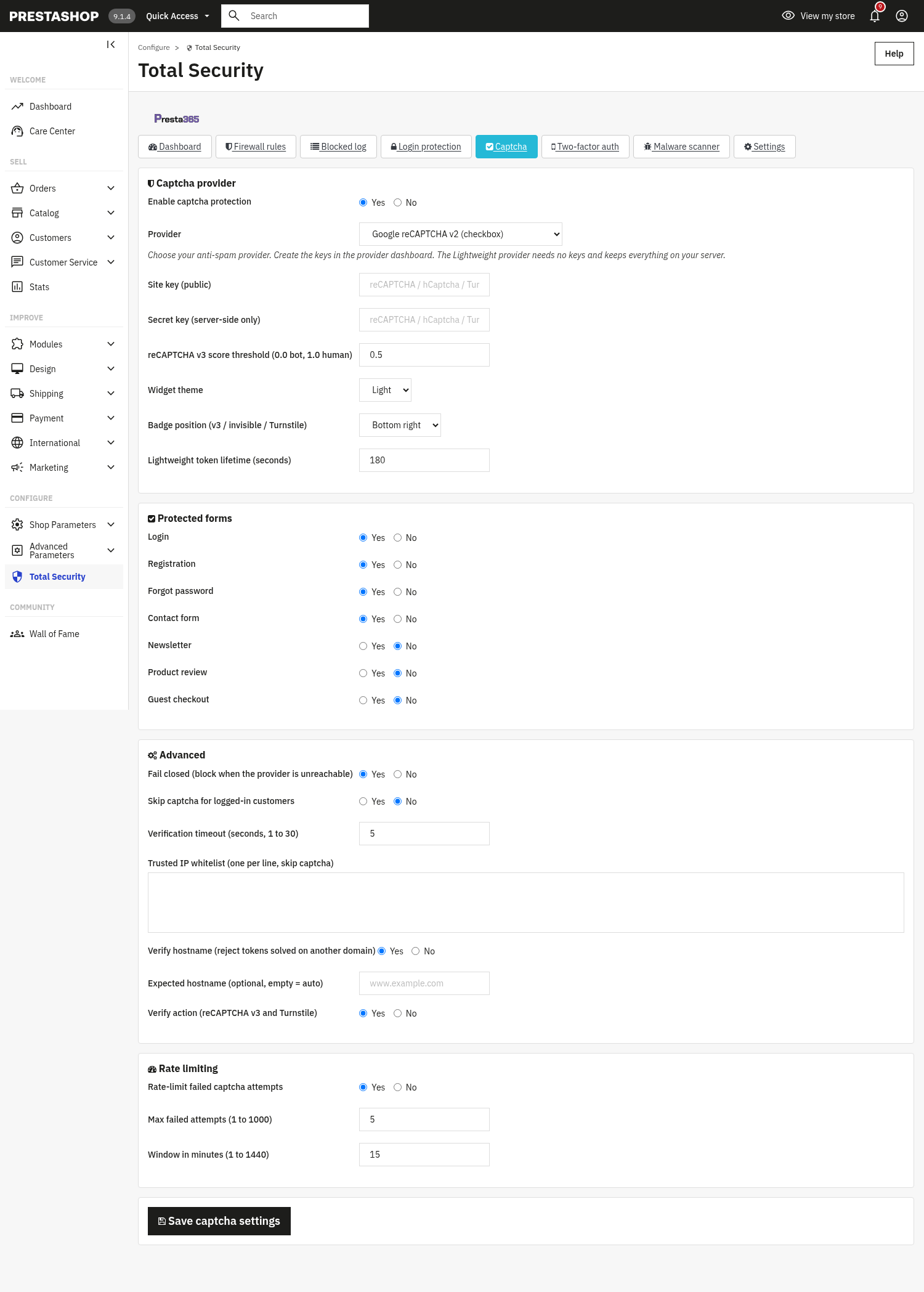
- Captcha provider: choose Google reCAPTCHA v2 (checkbox), reCAPTCHA v3, hCaptcha, Cloudflare Turnstile, or the Lightweight provider that needs no keys and keeps everything on your server.
- Site key / Secret key: from the chosen provider's dashboard, reCAPTCHA v3 score threshold, widget theme, badge position, lightweight token lifetime.
- Protected forms: Login, Registration, Forgot password, Contact form, Newsletter, Product review, Guest checkout (each on/off).
- Advanced: Fail closed (block when the provider is unreachable), Skip captcha for logged-in customers, Verification timeout, Trusted IP whitelist, verify hostname, verify action.
- Rate limiting: rate-limit failed captcha attempts with a max and a window.
Two-factor auth (2FA)
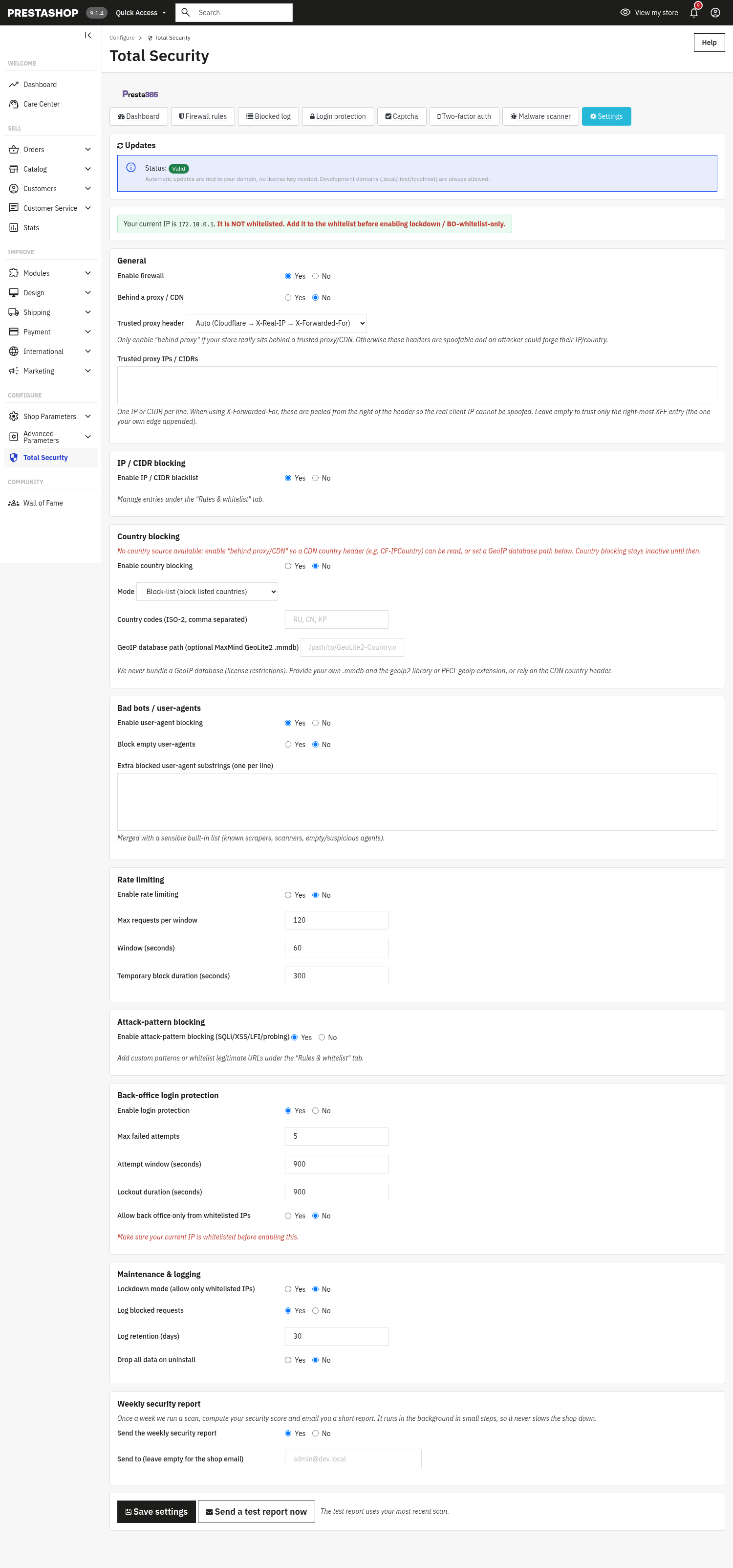
Time-based one-time codes (Google Authenticator, Authy, 1Password and any compatible app). Nothing leaves your server: secrets are encrypted at rest and verified locally.
- Your account: set up 2FA for the account you are signed in with (scan a QR code, enter a 6-digit code).
- Enable 2FA for the back office (staff) and/or for customers (front office).
- Force 2FA for specific employee profiles, by ID (1 = SuperAdmin, 2 = Logistician, 3 = Translator, 4 = Salesman); listed profiles cannot use the back office until they enrol.
- Tolerance window, number of backup codes, issuer name shown in the app.
- Enrolled employees and enrolled customers are listed and can be reset.
Malware scanner
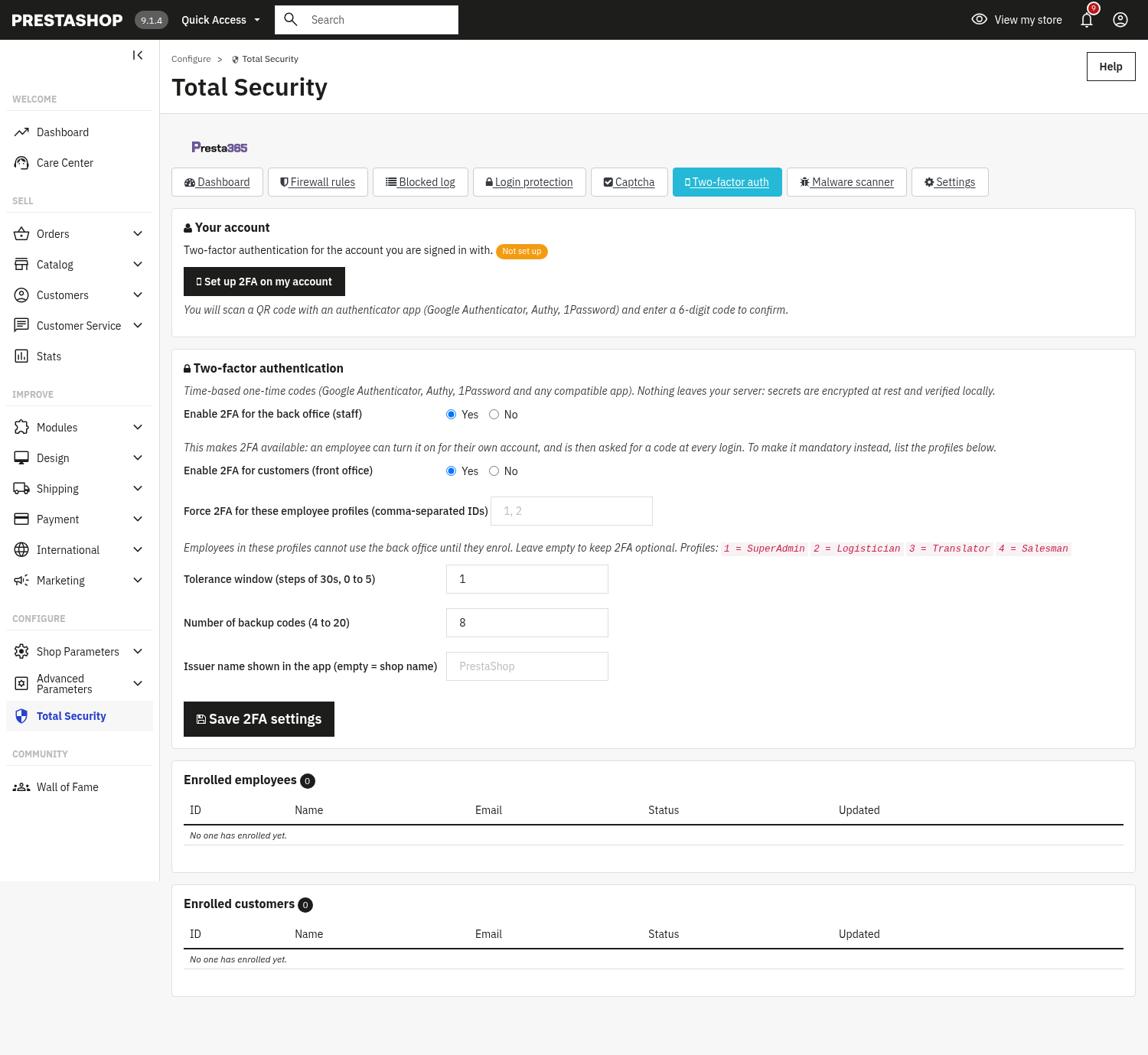
Local malware / webshell scan: scans for known webshell and obfuscation signatures, executable code hidden in media folders, and files added or changed since your trusted baseline. Everything runs on the server: no file, hash or path ever leaves the shop.
- Metrics: suspicious files, files in baseline, last scan.
- Run scan now and Set current files as trusted baseline.
- Findings are listed with severity, what, file and when.
Settings firewall configuration
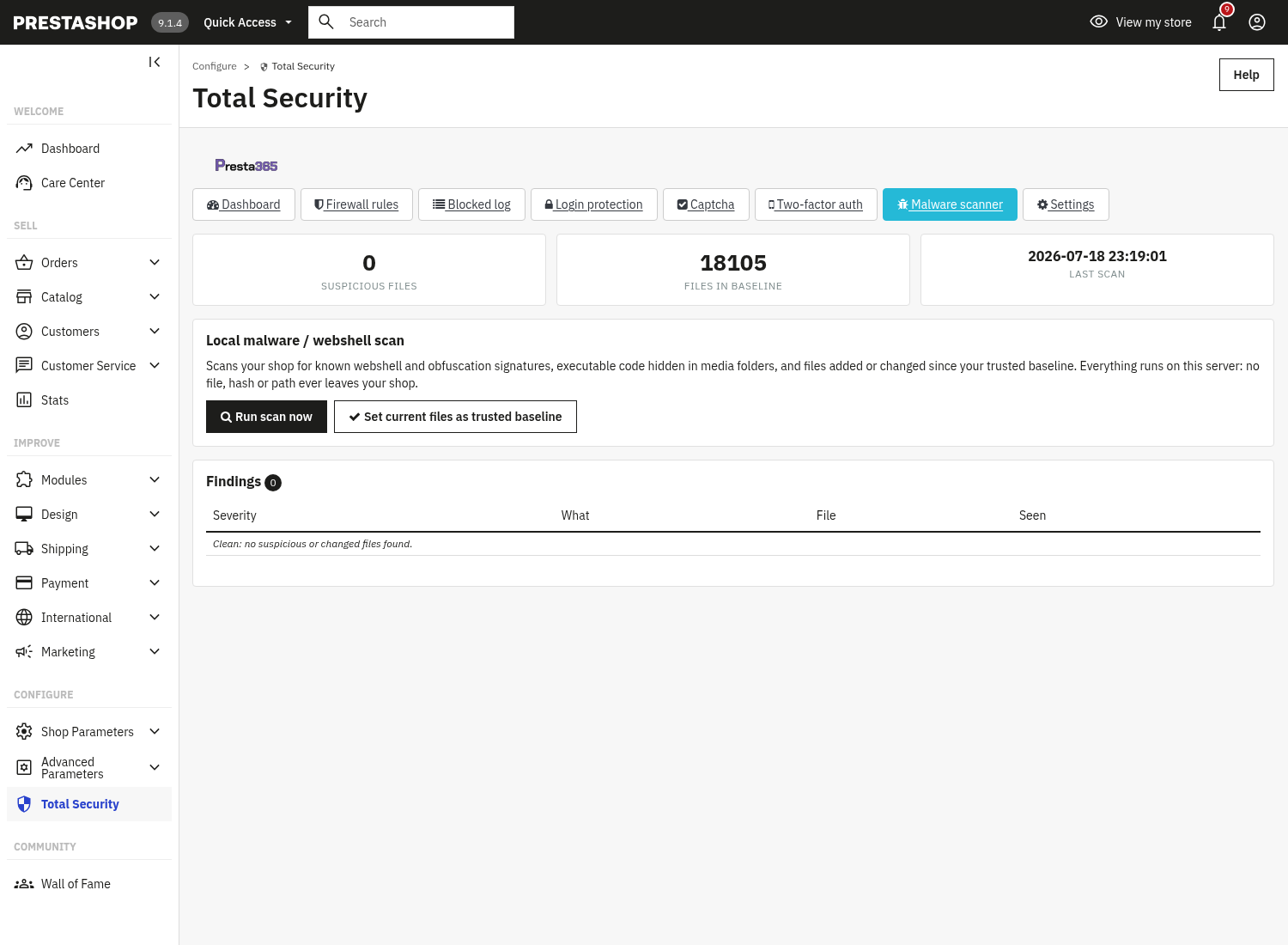
The firewall's own configuration, grouped by section.
- General: Enable firewall; Behind a proxy/CDN with a trusted proxy header and trusted proxy IPs/CIDRs, only enable this behind a real trusted proxy, otherwise IP/country headers are spoofable.
- IP/CIDR blocking.
- Country blocking: block-list or allow-list mode, ISO-2 codes, an optional MaxMind GeoLite2 database path or a CDN country header, the database is never bundled, for licensing reasons.
- Bad bots / user-agents: enable UA blocking, block empty UA, extra blocked substrings merged with a built-in list.
- Rate limiting: max requests per window, window seconds, temporary block duration.
- Attack-pattern blocking: SQLi/XSS/LFI/probing. Every field of a submitted form is checked; a submission larger than 2 MB, nested deeper than 32 levels or that cannot be read to its end is refused (log reasons
inspection_limitandinspection_error). A real checkout stays far below these limits; if one of your modules legitimately sends larger data from the shop front, add the path of its address (for example/module/designer/save) to the Pattern whitelist. - Back-office login protection: max failed attempts, attempt window, lockout duration, allow back office only from whitelisted IPs.
- Maintenance & logging: Lockdown mode (allow only whitelisted IPs), log blocked requests, log retention days, drop all data on uninstall.
- Weekly security report: emails a short report; runs in the background in small steps so it never slows the shop.
In the front office
When the firewall blocks a request, the visitor gets a plain 403 "Forbidden, your request has been blocked by the site firewall" page: bots and scanners never reach your shop.

3. Check that it works
- Open the Dashboard and read your security score and checklist.
- Send a request with a scanner-like user-agent (or a probing URL) and confirm you get the 403 block page and a new row in the Blocked log.
- After several failed back-office logins, the account/IP is locked in Login protection.
- Enable captcha and confirm it appears on the login/registration form.
- Set up 2FA on your account and log in again with a 6-digit code.
- Run the Malware scanner and read the findings.
4. FAQ
Does it slow down the shop?
No: the firewall runs first with cheap, indexed lookups; the scanner and the weekly report run in the background.
Will it lock me out?
Whitelist your current IP first (the page warns you; at install the module whitelists only your public address, never local addresses such as 127.0.0.1/::1 or the proxy's); enable lockdown mode or back-office-whitelist-only only after that. If the module sees your connection with a local or private address (for example 127.0.0.1), the back office warns you: behind a proxy, a load balancer or a CDN every visitor probably shows up with that same address, so turn on Behind a proxy/CDN in Settings (and add the proxy address to the trusted proxies if it is not 127.0.0.1).
modules/cll_totalsecurity folder by hand (over FTP or with a file manager) to get back in, clear the PrestaShop cache right after: empty the var/cache/prod folder or run php bin/console cache:clear --env=prod as the web server user. Until the cache is cleared the back office answers with an error 500; the shop front keeps working. Disabling or uninstalling the module from the Module Manager does not have this problem.Does any data leave my server?
No: the firewall, the Lightweight captcha option, the 2FA secrets and the malware scanner all run locally on your server.
Does it replace separate firewall / captcha / 2FA modules?
Yes: it is the single, unified security suite.
Do I need to edit my theme?
No: it works through standard hooks and is compatible with any theme.