
AI SEO. AI SEO automatically adds the structured data that search engines (Google, Bing) and AI assistants (ChatGPT, Perplexity, Google AI Overviews) need to understand and cite your store: schema.org JSON-LD and an AI-readable llms.txt file describing your catalogue. No coding, no theme edits.
AI SEO automatically adds the structured data that search engines (Google, Bing) and AI assistants (ChatGPT, Perplexity, Google AI Overviews) need to understand and cite your store: schema.org JSON-LD and an AI-readable llms.txt file describing your catalogue. No coding, no theme edits.
1. Installation
- In the back office go to Modules → Module Manager → Upload a module and select the module ZIP.
- Once installed, click Configure to open the setup wizard.
.local, .test, localhost) are always allowed. When a new version is available it is shown right inside the module.If instead of the confirmation you read "Upload failed", PrestaShop may have disabled the module without telling you: your settings and data stay where they are. How to update a module, and what to do if it says "Upload failed".
2. Configuration: step by step
The Configure screen is a 5-step wizard. Each step is a feature you can turn on independently.
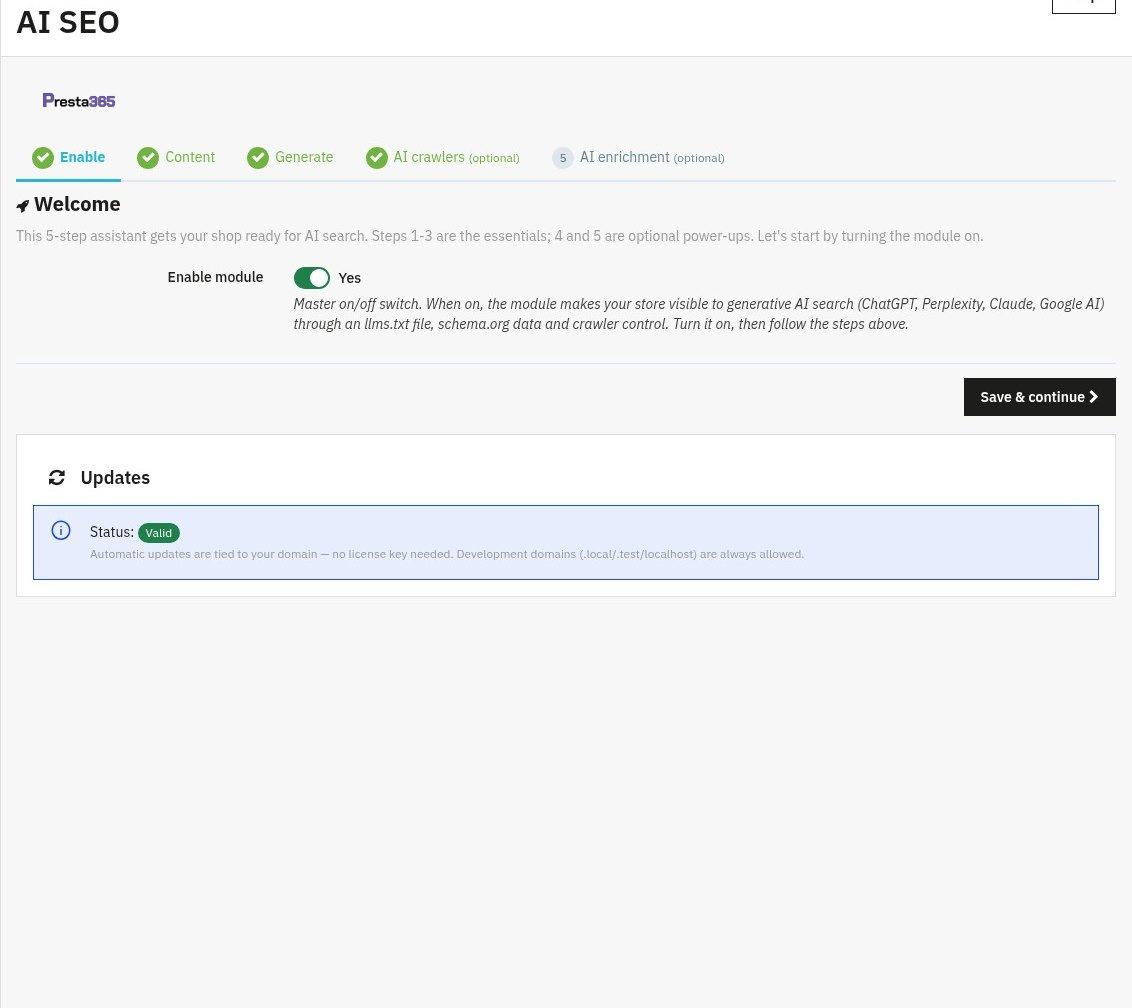
Step 1: Enable master switch
The on/off switch for the whole module. Turn Enable module on, then Save & continue. When the module is off, the AI file is no longer rebuilt automatically; the structured data on your pages has its own switch in Step 2.
Step 2: Content
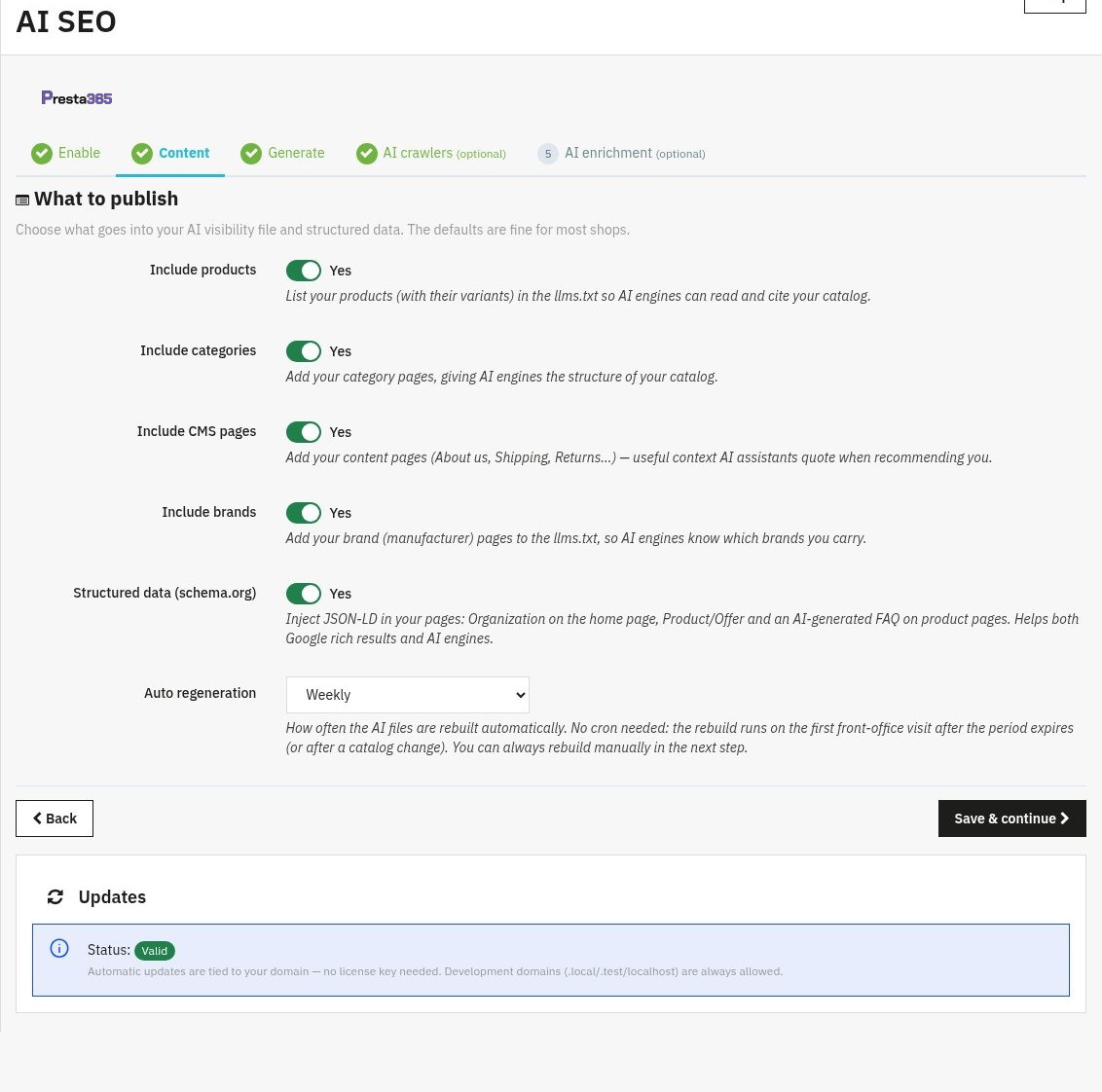
Choose what goes into your structured data / AI file and how often it refreshes.
- Include products / categories / CMS pages / brands: tick the parts of your catalogue you want search engines and AI to see. More coverage = better understanding of your store.
- Refresh schedule: Weekly, Monthly, or Off (manual only). The file also refreshes automatically after catalogue changes.
Step 3: Generate
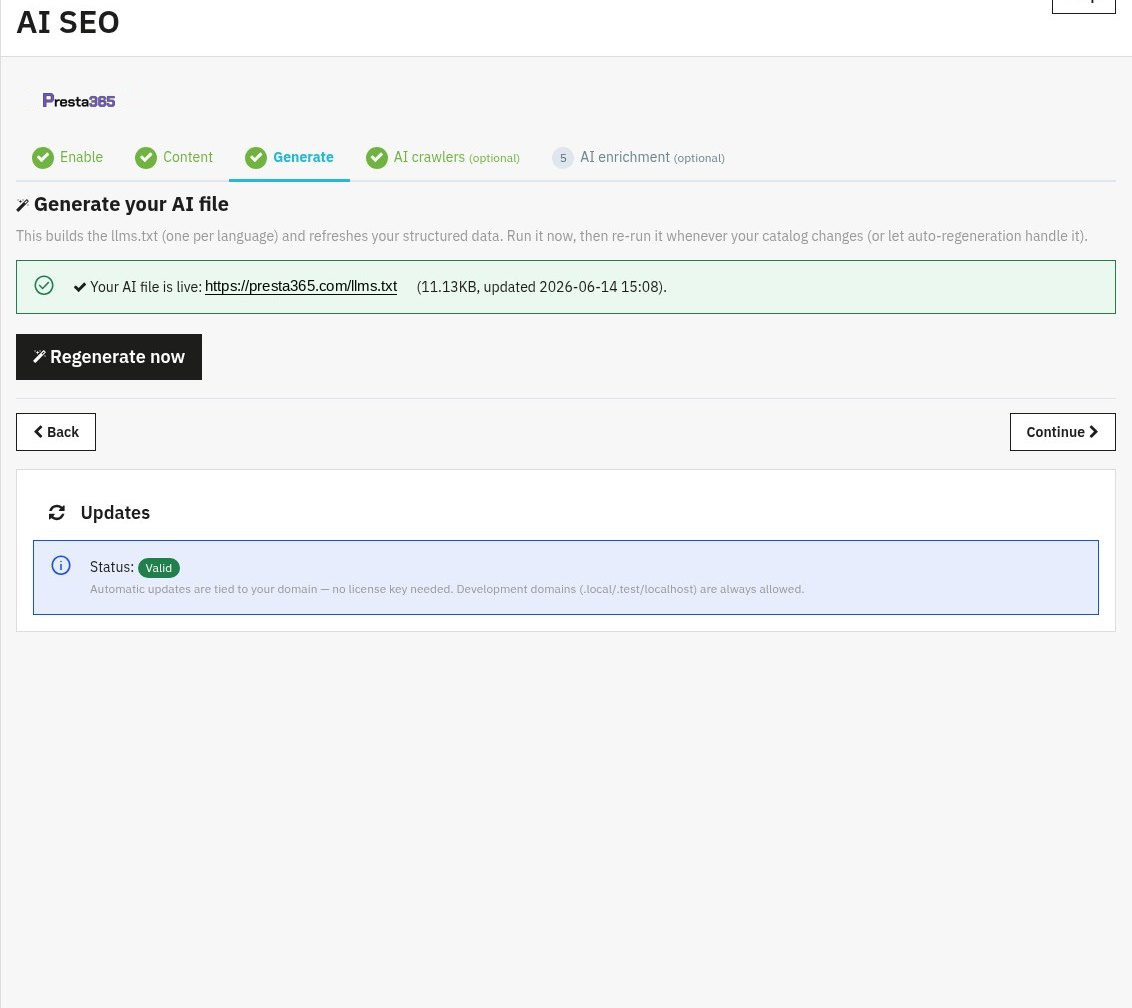
Builds your AI file (llms.txt) and the structured data. Click Generate now the first time; afterwards the panel shows the live file, its size and last update, with a Regenerate now button. You normally never need this manually, it regenerates on its own.
Step 4: AI crawlers optional
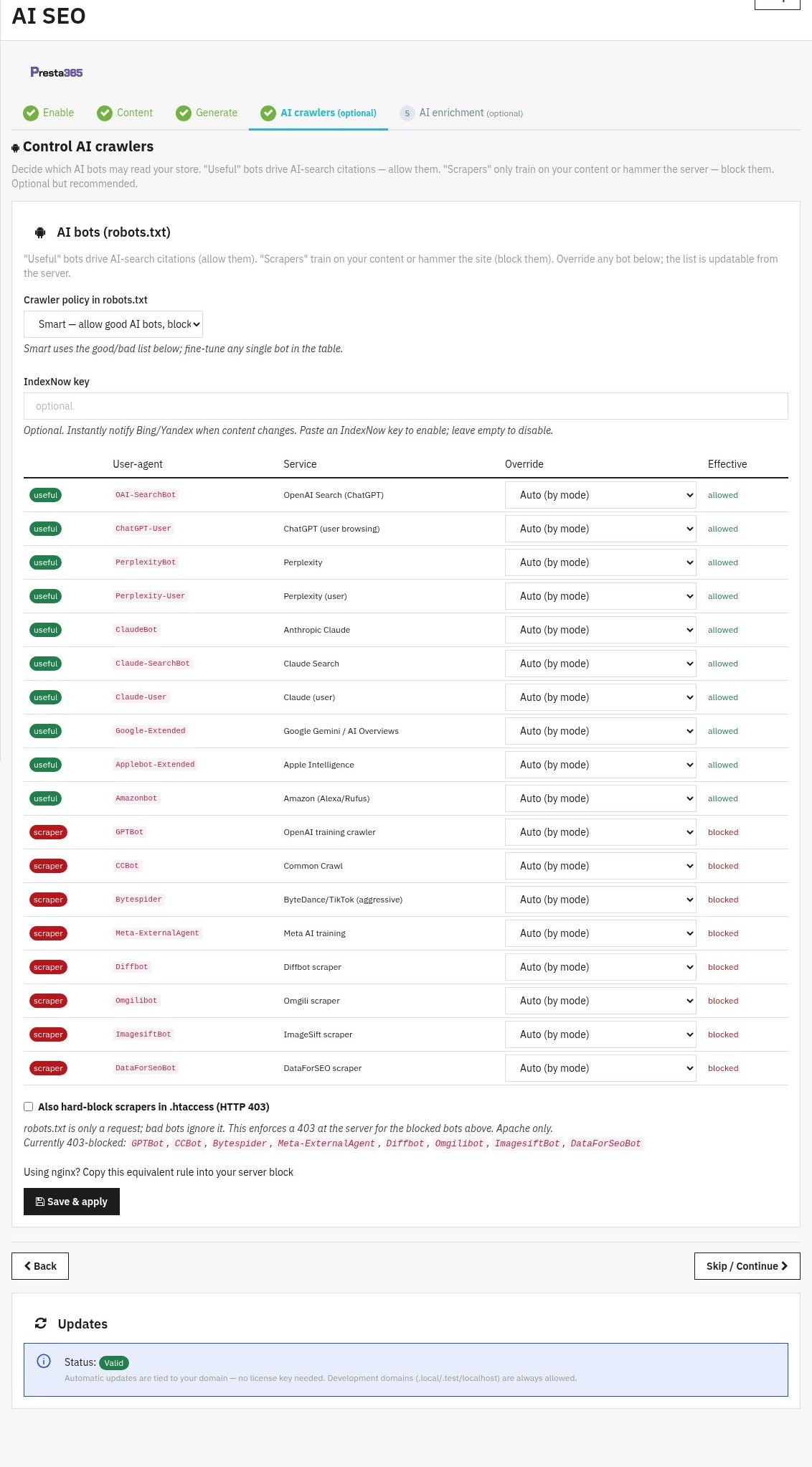
Control AI crawlers: decide how AI bots may access your llms.txt and content. Leave the defaults to let assistants discover and cite your products, or restrict them. You can safely Skip / Continue if unsure.
Step 5: AI enrichment optional
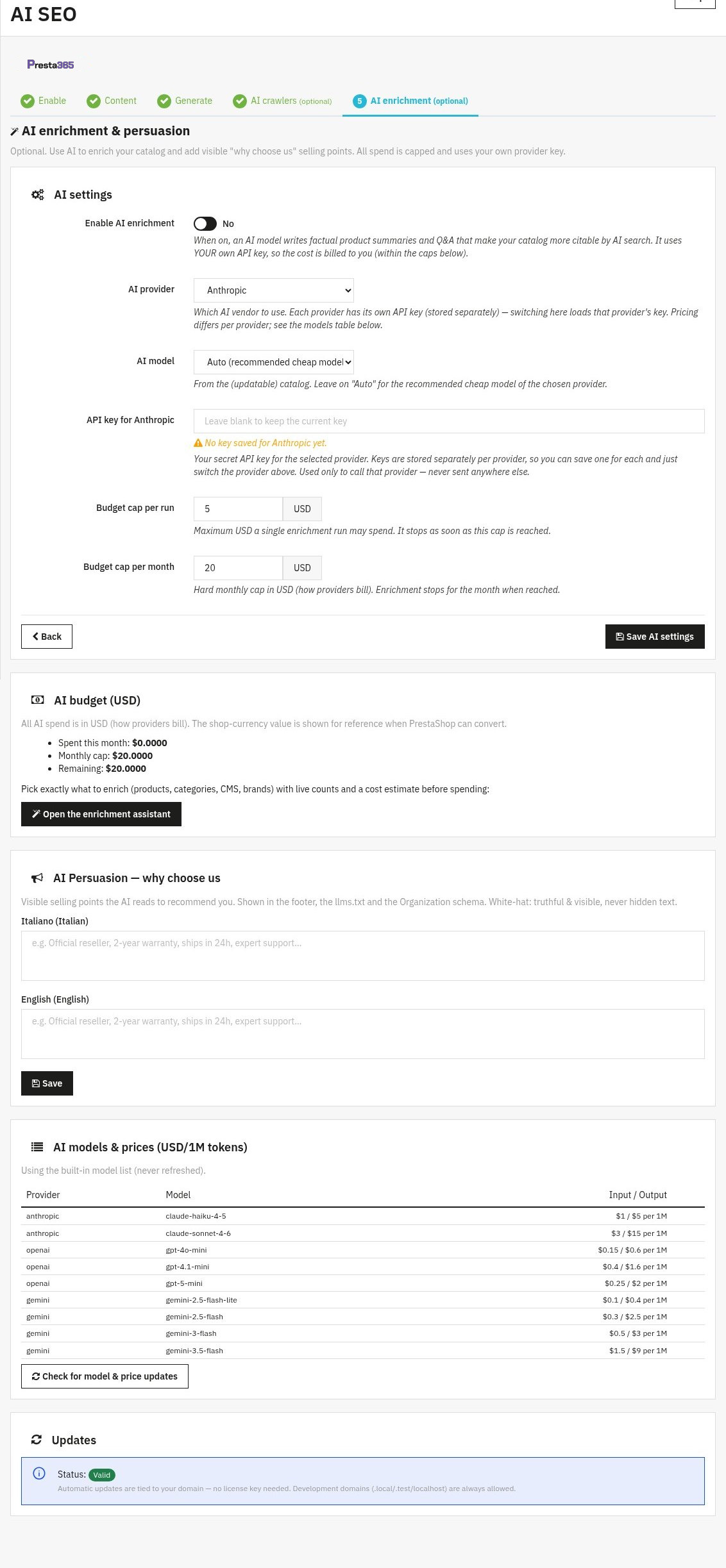
Optionally use an AI provider to write short, factual summaries for the AI file, plus questions and answers for products. Enable AI enrichment, pick the AI provider and AI model, and paste your own API key (not shown again once saved; leave blank to keep the current one). This step is optional, the core SEO/AI features work without it.
3. Check that it works
- Open any product page, view the page source and look for
<script type="application/ld+json">. - Paste a product URL into Google’s Rich Results Test.
- Visit
/llms.txton your shop domain, you should see the AI-readable summary.
4. FAQ
Does it slow down my shop?
No. The AI file is rebuilt in the background, never while a visitor waits, and there is no heavy work on page load.
Do I need to edit my theme?
No. AI SEO works through standard hooks and is compatible with any theme.
Will it conflict with another SEO module?
It focuses on structured data and AI discovery, so it complements classic meta-tag modules.
Is the AI enrichment required?
No. Steps 4 and 5 are optional; the structured data and llms.txt features work on their own.