
Cookie Consent & Google Consent Mode v2. Cookie Consent shows a GDPR cookie banner with granular categories and wires up Google Consent Mode v2. It can inject GA4, Google Tag Manager and the Meta (Facebook) Pixel only after the matching consent is granted, block known third-party scripts until then, publish a cookie declaration and keep a consent register you can export to CSV. No coding, no theme edits.
Cookie Consent shows a GDPR cookie banner with granular categories and wires up Google Consent Mode v2. It can inject GA4, Google Tag Manager and the Meta (Facebook) Pixel only after the matching consent is granted, block known third-party scripts until then, publish a cookie declaration and keep a consent register you can export to CSV. No coding, no theme edits.
1. Installation
- In the back office go to Modules → Module Manager → Upload a module and select the module ZIP.
- Once installed, click Configure to open the setup wizard.
.local, .test, localhost) are always allowed. When a new version is available it is shown right inside the module.If instead of the confirmation you read "Upload failed", PrestaShop may have disabled the module without telling you: your settings and data stay where they are. How to update a module, and what to do if it says "Upload failed".
2. Configuration: step by step
The Configure screen has two tabs: Settings (everything below) and Consent register (the accountability log). All the options live on one Settings form, grouped into the sections described here.
Cookie consent settings
Open the Settings tab and fill in the groups in order, then press Save at the bottom.
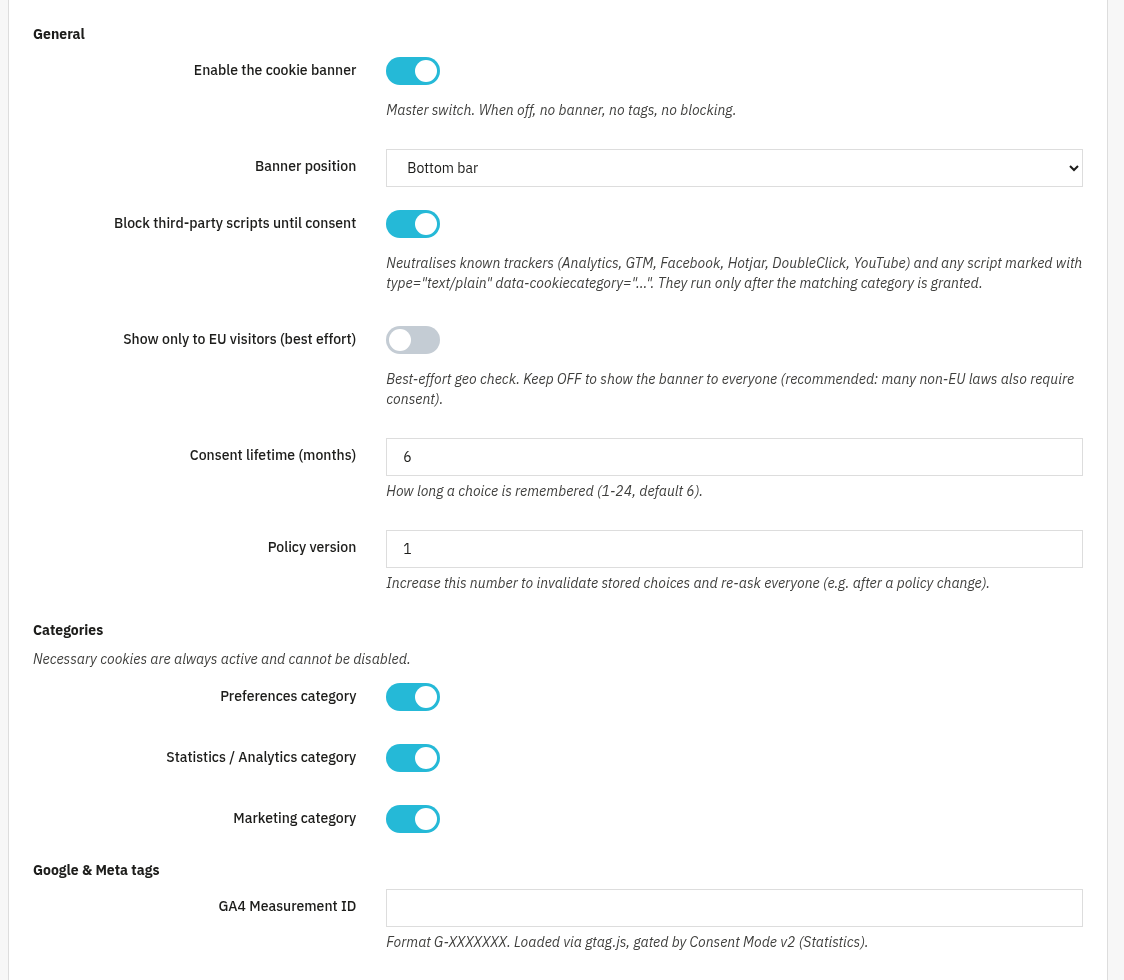
- General: Enable the cookie banner (master switch: when off, no banner, no tags, no blocking), Banner position (Bottom bar or Centered modal), Block third-party scripts until consent (neutralises known trackers, Analytics, GTM, Facebook, Hotjar, DoubleClick, YouTube, and any script marked
type="text/plain" data-cookiecategory="..."), Show only to EU visitors (best effort), Consent lifetime (months) (1-24, default 6) and Policy version (raise it to re-ask everyone after a policy change). - Categories: necessary cookies are always active and cannot be disabled. Turn on the optional categories you use: Preferences, Statistics / Analytics and Marketing.
- Google & Meta tags: GA4 Measurement ID (
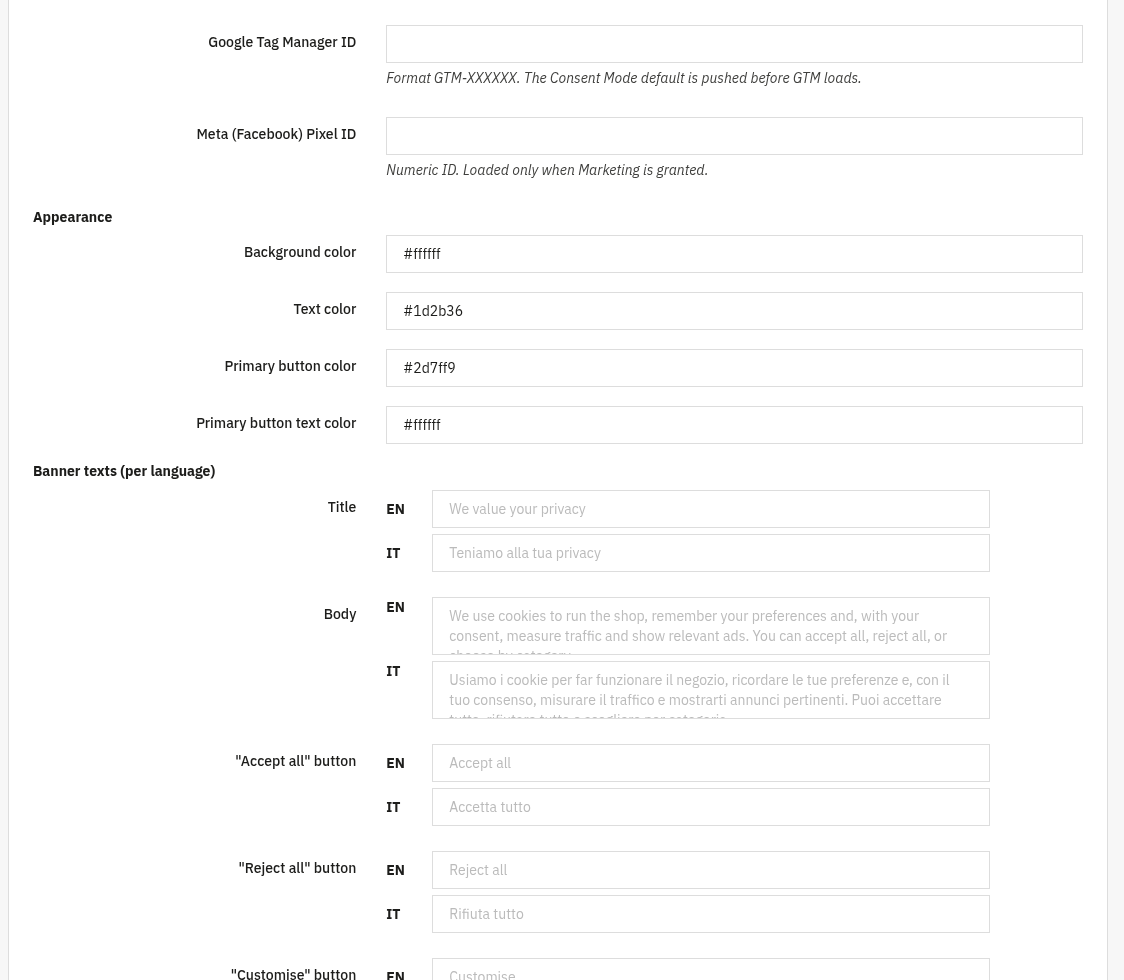
G-XXXXXXX, loaded via gtag.js, gated by Consent Mode v2 / Statistics), Google Tag Manager ID (GTM-XXXXXX, the Consent Mode default is pushed before GTM loads) and Meta (Facebook) Pixel ID (numeric, loaded only when Marketing is granted). - Appearance: Background color, Text color, Primary button color and Primary button text color (hex values such as
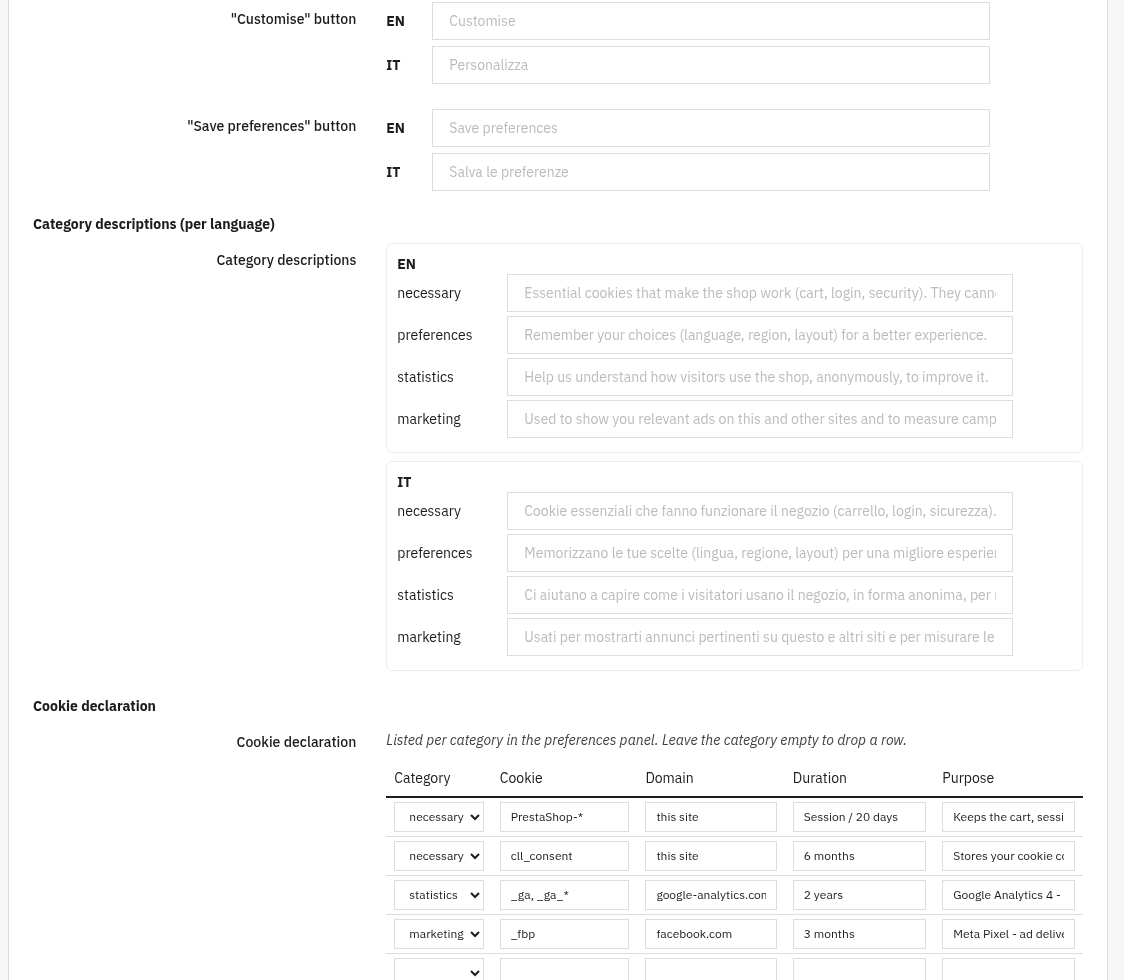
#222222). - Banner texts (per language): override the Title, Body, "Accept all" button, "Reject all" button, "Customise" button and "Save preferences" button for each shop language. Leave a field blank to keep the built-in text.
- Category descriptions (per language): the explanatory text shown under Necessary, Preferences, Statistics and Marketing in the preferences panel.
- Cookie declaration: the per-category table listed in the preferences panel: pick a Category and enter the Cookie name, Domain, Duration and Purpose. Leave the category empty to drop a row.
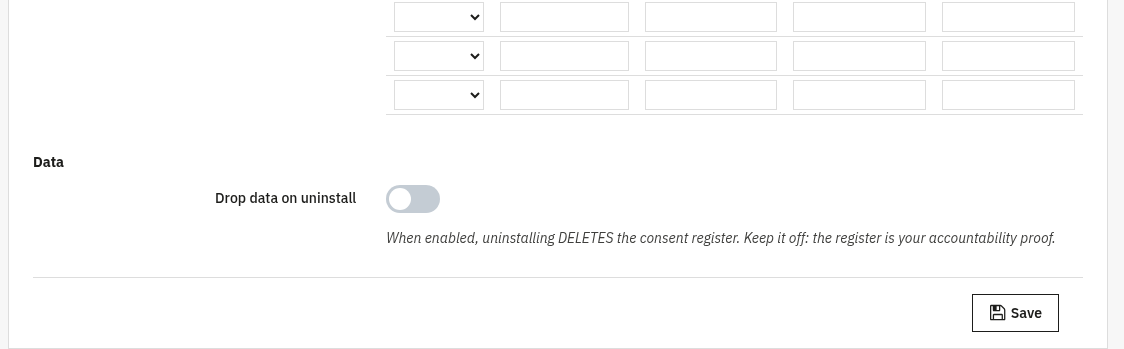
- Data: Drop data on uninstall. Keep it off: the consent register is your accountability proof, so it survives uninstall unless you opt in.
3. Check that it works
- Open your shop in a fresh/incognito window: the banner should appear on the first visit.
- Click Reject all, then check the page source / network tab, GA4 and the Meta Pixel must not load.
- Click Accept all on a new visit and confirm the tags now fire (gtag / GTM / Pixel requests appear).
- Open the Consent register tab: your choices should be recorded as new rows. Use Export CSV to download the log.

4. FAQ
Does it support Google Consent Mode v2?
Yes. The Consent Mode default (everything denied) is pushed before GTM/GA4 load, and consent is updated when the visitor chooses, gating Statistics and Marketing.
Does it block scripts before consent?
Yes. With Block third-party scripts until consent on, known trackers and any script tagged type="text/plain" data-cookiecategory="..." only run after the matching category is granted.
Where is the consent register and what does it store?
On the Consent register tab. It is an accountability log (GDPR art. 7.1), no personal data: the visitor identity is a salted hash and the IP is anonymised. You can filter it and export to CSV.
Do I need to edit my theme?
No. The banner is self-contained and works through standard hooks with any theme.
5. The six Consent Mode v2 signals, and why the order matters
A cookie banner and Consent Mode v2 sit at different levels: the banner is the interface that asks the visitor for permission, Consent Mode is the protocol that communicates that permission to Google's tags, made of signals with a specific name. Since version 2 the signals are six: ad_storage and analytics_storage (already in v1), plus ad_user_data and ad_personalization (added with v2), and in practice almost every implementation also handles functionality_storage and personalization_storage for the site's own preferences. A seventh signal, security_storage, stays granted at all times, since it covers technical security cookies, not tracking.
The most common mistake is not in the values chosen but in the sequence: a Google tag that loads before the site has declared a consent default behaves as though no consent framework exists at all. The module declares the denied default as soon as the document starts loading, with a 500-millisecond grace window that gives a previously stored choice time to be re-read, and only after declaring the default (or the update, if the visitor already chose on an earlier visit) does it load GTM, GA4 and any third-party pixel.
Blocking third-party scripts (see section 2) works by watching the DOM as the page builds itself and recognising a script or iframe against a list of domain patterns (for example google-analytics.com, facebook.net, doubleclick.net), swapping it for an inert placeholder until the category is accepted: without this layer, a denied default only covers tags the site itself wrote, not ones shipped inside third-party modules.
A real case: a correct default, a banner nobody could read
On our own store we found an instructive defect on September 14, 2026: the Consent Mode mechanism itself was correct, yet the banner's text (title, body, buttons, category names) came out in English for anyone browsing the French, Spanish or German versions of the site, because the text was written directly in the module's code in an array that only covered two languages. Fixed by adding the three missing language blocks (17 strings each, with real accented characters) in version 1.0.9. Consent collected while showing text the visitor cannot read is weak consent: GDPR's own requirement is that the notice be understandable to the person reading it, not just technically present on the page.
A checklist to verify your own setup
- In the homepage's page source,
gtag("consent","default",...)must appear before any GTM or gtag.js tag, not after. - All six signals must be present in the default, not just the
ad_storageandanalytics_storageinherited from v1: missingad_user_dataorad_personalizationis the most common mistake. - With the browser's network tools, verify a script like Google Analytics does not fire before consent: zero network requests to that domain, not just a declared and ignored signal.
- Switch the store's language and look at the banner again: text that only got translated halfway is as common a defect as it is invisible to whoever published it.